
Before installing MaLiLib Mod
MaLiLib Mod is a library, so a good installation starts by identifying the Minecraft profile that actually needs it. Open your launcher and note the exact Minecraft version, the mod loader used by that instance, and the names of the client-side mods that depend on MaLiLib. Do not rely on the name of a launcher profile alone; a profile called “latest” or “Fabric” can still point at a different game version than you expect. This small inventory gives you a stable baseline and prevents the most common mistake: downloading a MaLiLib build that belongs to a different game line.
Back up the instance before changing a setup that already works. For most users, the important items are the world saves, the existing mods folder, and any configuration files you have spent time tuning. MaLiLib itself is not a world-content mod, but the safest modding habit is to make changes reversible. If the next launch fails, you want to restore the previous state quickly instead of trying to remember which JAR files were replaced. A simple copy of the profile folder or a launcher snapshot is enough to turn troubleshooting into a controlled test instead of a guessing exercise.
Choose the correct MaLiLib Mod build
Version matching matters more than the download date. A newer MaLiLib Mod release is not automatically correct for an older Minecraft instance. Compare the version label with the Minecraft line you are running. If you use Fabric, choose a Fabric-compatible build for that game version. If your setup is based on Forge or NeoForge, do not drop a Fabric JAR into the profile and hope the loader will adapt it. Treat each loader family as a separate compatibility path and verify it independently.
Also check the version requirements of the mod that asked for MaLiLib. Litematica, MiniHUD, Tweakeroo, Item Scroller and other client-side tools can depend on particular MaLiLib generations. The dependent mod and the library need to agree on the game version and expected API behavior. If one piece is from a newer branch and another is from an older branch, Minecraft may stop during loading even though both filenames contain familiar words. Keep the relationship simple: one Minecraft version, one loader family, one compatible MaLiLib build, and compatible versions of the mods that use it.
Download MaLiLib Mod
The homepage uses one direct Download button instead of sending visitors through a separate download page. Before using any downloaded file in a Minecraft profile, confirm that its version and format match the purpose you need. For a normal modded-game setup, the runtime mod file must match the Minecraft version and loader used by that profile.
This site keeps the download flow intentionally simple: the homepage provides the direct file button, while the Guides category contains the longer installation and compatibility explanations. There are no additional download cards, version download pages or alternate external download buttons in the site navigation.
Put MaLiLib Mod in the correct mods folder
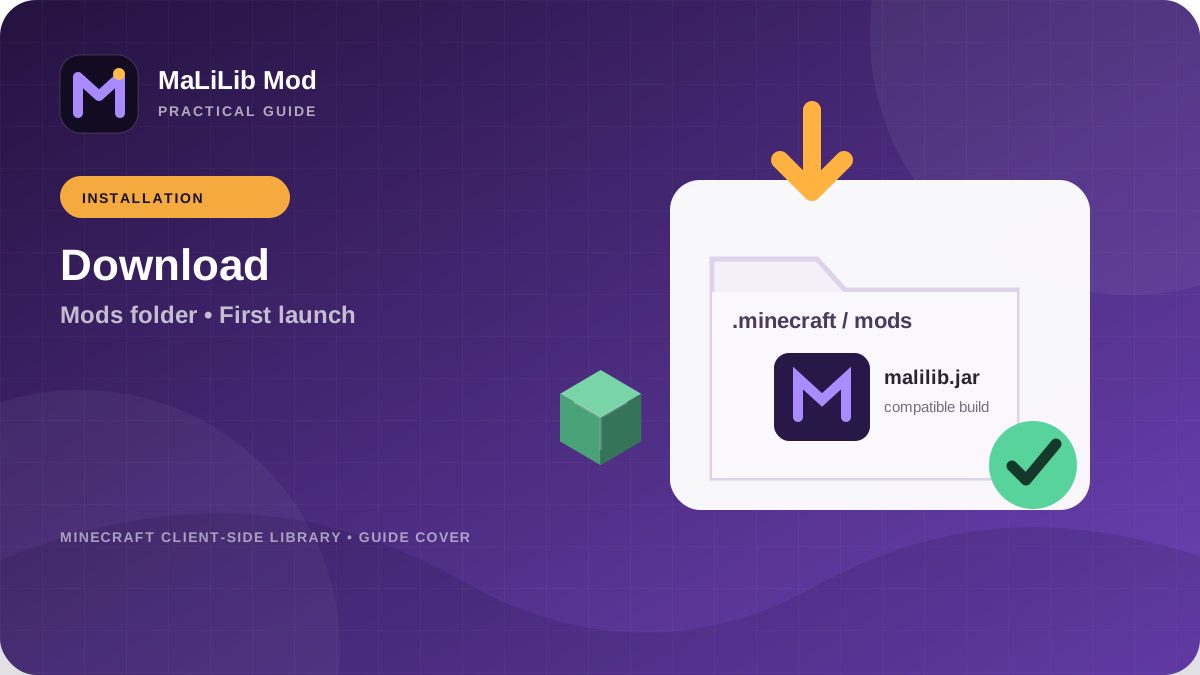
Close Minecraft completely before changing files. Then open the game directory used by the exact launcher profile you identified earlier. Different launchers can keep separate instances, so the global .minecraft/mods folder may not be the folder your profile actually reads. Place the chosen MaLiLib JAR in that instance’s mods directory. If you are replacing an older version, move the old MaLiLib file out of the folder rather than leaving two versions side by side. Duplicate library versions can create confusing loader errors and make it difficult to tell which code is being used.
Keep the first test minimal. Do not update Java, swap loaders, add a large mod pack and replace MaLiLib in the same launch. Start with the smallest change that satisfies the dependency you are trying to fix. If the launcher offers a mod list, review it before pressing Play and make sure only one MaLiLib entry is present. This disciplined approach gives every result meaning. If the game launches, you know the library placement and broad compatibility are probably correct. If it does not, the log is easier to interpret because you changed fewer variables.
Verify the first launch
Watch the loading phase rather than immediately opening a world. A loader error that names MaLiLib, an incompatible Minecraft version, or a missing dependency is useful evidence. Read the complete message and preserve the latest log before trying another file. If the game reaches the title screen, open the mods list or the configuration interface provided by your loader and confirm that MaLiLib is detected. Then open one of the mods that depends on it and check whether its configuration screens or hotkeys behave normally. The goal of the first launch is verification, not a long play session.
If the title screen appears but a dependent mod still fails, compare the versions again. A successful Minecraft launch only proves that the loader accepted the installed set; it does not guarantee that every integration path is compatible. Check the dependent mod’s documentation and current issue tracker for version-specific requirements. When reporting a problem, include Minecraft version, loader version, MaLiLib version and the dependent mod version. That four-part description is far more useful than saying “MaLiLib does not work,” because it allows another person to reproduce the same compatibility combination.
Understand MaLiLib Mod dependencies
MaLiLib centralizes code that several client-side mods can share, including configuration systems, configuration screens, keybind handling and utility functions. That is why removing MaLiLib can break a mod even if MaLiLib does not appear to add an obvious gameplay feature by itself. The dependent mod expects classes and behavior supplied by the library. If the loader says MaLiLib is missing, the correct response is normally to install a compatible library build, not to rename a file or disable dependency checking. Dependency metadata exists to stop a mismatched environment before it produces harder-to-diagnose errors later.
Likewise, avoid installing MaLiLib simply because a tutorial lists it unless your current mod set actually requires it. Extra libraries are usually harmless when compatible, but every additional component increases the number of versions you must keep aligned. Build profiles intentionally. If you use one MaLiLib-dependent mod, document that relationship in your notes. If you use several, update them as a group when practical and test after each meaningful change. Thinking in terms of a dependency stack makes future upgrades easier because you know which components should be checked together.
Update MaLiLib Mod with a rollback path
When you plan an update, note your current Minecraft version, current MaLiLib version and the versions of the dependent mods before replacing a working file. Close the game, change only the MaLiLib component and run a short verification launch. If that succeeds, test the configuration screens and hotkeys you actually use. This sequence separates a library update from unrelated changes and makes it clear whether the update improved, preserved or broke the environment.
If the update causes a problem, restore the previous MaLiLib file and retest without changing anything else. A successful rollback strongly suggests that the new version or its compatibility expectations are involved. A failed rollback tells you something else also changed. Keep the old file until you have completed a few successful sessions with the new one, then remove obsolete copies from the active mods folder. The installation principle is straightforward: identify the profile, match the version, change one component at a time, verify the result and keep enough information to reverse the change.