
MaLiLib Mod and shared configuration behavior
One of MaLiLib Mod’s best-known roles is providing shared configuration infrastructure for client-side mods. The original project documentation lists a configuration options system, associated configuration screens and a configurable multi-key keybind system among its core features. This means users often interact with MaLiLib indirectly. You open the settings of another mod, change an option or assign a hotkey, while the underlying interface and input logic are supplied by the library. Recognizing that shared layer is useful when several related mods show similar configuration behavior.
It also explains why a configuration problem can have more than one possible source. The setting itself belongs to the dependent mod, but the widget, screen or keybind framework may come from MaLiLib. Before reporting a bug, determine whether the problem appears in one mod only or across several MaLiLib-dependent mods. If a single option is wrong, the dependent mod may be the best place to investigate. If every configuration screen fails in the same way after a library update, MaLiLib compatibility becomes more relevant.
Use configuration screens deliberately
Configuration screens make experimentation convenient, but convenience should not replace documentation. Change one setting at a time when you are learning what a mod does. If a screen has many tabs or categories, start with the smallest set of options required for your workflow. Take a screenshot or write down important values before large changes. That creates a reference if you later decide the old behavior was better. For profiles with many client-side utilities, this habit prevents dozens of small changes from accumulating into an environment nobody can reproduce.
After changing a configuration value, test the exact feature it controls. Do not adjust ten rendering options and then try to diagnose a visual artifact from memory. MaLiLib’s shared framework can make settings consistent across mods, but each mod still defines the meaning of its own options. Read tooltips and project documentation, especially for advanced toggles. If a value is intended for debugging, development or a narrow compatibility case, leaving it at the default is often safer than enabling it because the name sounds useful.
How multi-key hotkeys change your setup
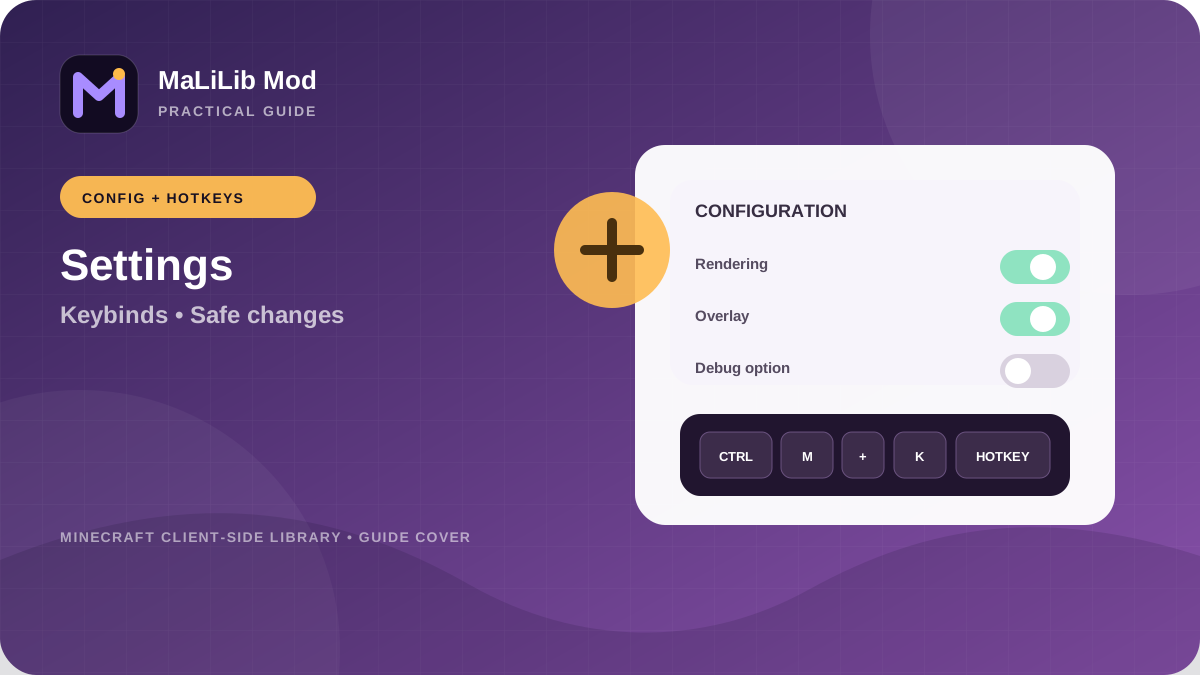
MaLiLib’s keybind system can support combinations rather than only a single keyboard key. That flexibility is useful for advanced client-side mods because it gives them many actions without consuming every convenient key. It also introduces more opportunities for overlap. A hotkey can conflict with a vanilla control, a loader shortcut, another mod or even an operating-system-level key combination. When assigning a new binding, choose something memorable but uncommon, and test it in the exact gameplay context where you intend to use it.
Document complex combinations. If you return to a profile after several months, a carefully designed two-key or three-key shortcut is easy to forget. Keep a small list of the important actions you use most. For multi-mod profiles, group shortcuts by purpose: schematic actions, rendering toggles, inventory tools and debugging actions. Consistent patterns reduce mistakes. For example, reserving one modifier key for a family of utility actions can make the layout easier to remember, provided it does not collide with controls you already use.
Diagnose keybind conflicts methodically
If a hotkey stops responding, first verify that the dependent mod and MaLiLib are both loaded. Then open the relevant configuration screen and confirm the binding has not been cleared or changed. Test whether the same key is assigned elsewhere. Some conflicts are obvious because two actions fire at once; others are subtle because one mod consumes the input before another sees it. Temporarily assign a simple unused key to the failing action. If the action works with the temporary key, you have isolated the problem to the binding rather than the feature itself.
Context can matter too. A key combination may behave differently while a chat box, inventory screen or configuration GUI is open. Test in the normal gameplay state and note whether modifiers such as Shift, Control or Alt are involved. If the issue began after an update, compare the release notes of MaLiLib and the dependent mod for input changes. Avoid reinstalling the entire profile before performing these small tests. Input problems are easier to solve when you separate “the action is broken” from “the configured key never reaches the action.”
Treat MaLiLib-related configuration files as data
Configuration files are part of your profile state. Before moving a long-running instance to a new Minecraft or MaLiLib generation, back them up along with your mods list. If an update changes configuration structure, the application may migrate values, ignore old keys or regenerate defaults. A backup lets you compare old and new behavior without relying on memory. It also gives you a way to restore a complex keybind layout if you need to return to the previous versions.
Do not hand-edit configuration files while Minecraft is running unless the project explicitly documents that workflow. The game or mod can write its in-memory state back to disk and overwrite your manual changes. Close the game first, make a backup, edit carefully and restart. If a file is JSON or another structured format, preserve the syntax exactly. A missing comma or invalid value can create a new startup problem that looks unrelated to the original setting you wanted to change.
Reset settings without losing your recovery path
When a configuration appears corrupted, a clean reset can be useful, but “reset” should mean “move aside and test,” not “delete everything immediately.” Close the game, locate the relevant config file, copy it to a backup folder and let the mod generate a fresh default file on the next launch. Test the problem before restoring any custom values. If the clean file fixes the issue, reapply only the settings you need. This gradual reintroduction can identify a single problematic option or stale value.
If a clean config does not fix the problem, restore the backup and move to the next layer: version compatibility, loader messages or mod conflicts. Keeping the old file prevents troubleshooting from erasing useful evidence. It also respects the time invested in custom hotkeys and settings. A reset is a diagnostic experiment, not a punishment for the configuration. The goal is to learn whether configuration state contributes to the failure while keeping every step reversible.
A stable MaLiLib Mod configuration workflow
Start with a known-good version combination. Open the game, verify that MaLiLib-dependent mods load, then configure one mod at a time. Assign hotkeys in a consistent pattern, test them immediately and keep notes for any non-obvious combination. Before a major update, back up the profile and configuration files. After the update, launch once with the existing configuration and observe behavior. If problems appear, test with clean defaults in a copied instance before changing many values.
This workflow turns configuration into a managed part of the profile rather than a collection of accidental tweaks. MaLiLib is designed to provide common systems that make sophisticated client-side tools easier to use, and those systems are most useful when your setup remains understandable. A small amount of discipline—backups, one change at a time, documented hotkeys and exact version notes—keeps configuration problems local and makes future upgrades dramatically easier to diagnose.